


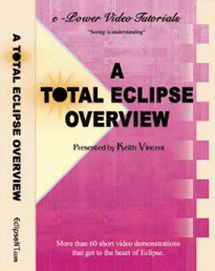
A Total Eclipse Overview
$84.95
(In Stock)
Over 200 short video lessons PLUS .6 NCRA Continuing Education Units!
This “Overview” expands on the material presented in the Total Eclipse Visualizers. You do not have to have Eclipse loaded on your computer to use the “Overview.” Plus, you can get .6 NCRA continuing education units while you’re learning to be more productive with Eclipse.{C}
Please Note: All videos run from CD-ROM disks and can be played on your computer, even while Eclipse is being used.
How to get CEUs? CLICK HERE
Tutorial Outline:
How the Video Player Works
Efficient Editing Tutorial Intro
What’s New in Total Eclipse
| 1. Display & Command Options General Display Settings for MS Windows Dialogue Customization: Zoom/Resize Dialogue Customization: Less/More, Anchor Dialogue Customization: Transparency Dialogue Customization: Font Toolbars: On/Off Toolbars: Docked/Undocked Toolbar Customization Mouse vs. Key Commands Hyperkeys Keyboard Customization Editing Font vs. WYWIWYG View/Hide Print Commands Color Selections Notebar Display and Font Notebar Options: Phonetics, Timecodes Notebar Options: Steno Width, Dictionary Review Multi-Document Display: Open All Dictionaries Organizing Windows: Cascade, Tile, New Window Spliting a Window into 2 Panes 2. Document & User Setup The Document Setup Wizard Paragraph Setup via the Document Wizard Paragraph Adjustments via the Document Wizard Paragraph Adjustments via the Document Ruler Paragraph Labels: From Q to Q. “Fixed” Paragraphs Paragraph Behavior Footers: Creation Footers: Adjustments Timecodes & Text Box Setup Text Box Adjustments Current Document vs. Master Format Using a Block Files Folder Customizing your Phonetics Table The Metadictionary Loading and Switching Settings Save Settings vs. Create New User Format How to Undo Settings Changes (if not yet saved) How to Delete a User Format 3. Translation, Realtime, Synchronized Audio Read Notes Append or Extract Notes Translation Notes: General Options Translation: Add Initial and/or Final Block File Apply Phonetics & Dragged/Dropped Key Rescue Set up Writer. Follow Realtime Translation Pending Transplation Display, Auto-Split Window Adding a Serial Port Finding a Com Port (Using Device Manager) Alt T to Start Realtime Translation Instant Realtime Realtime Output Realtime Output Buffer Wireless Realtime Connections Steno Link Overview Steno Link Configuration Bridge TeleView Sound Recorder Test Using Earphones for Microphone Monitoring Audio Playback Playback Options: Fast, Slow, Squelch Audio Auto-Stop/Play while Globaling/Typing Audio Compression: Sound Quality and File Size Adjusting Synchronization, Using a Voice Recorder 4. General Editing Insert/Overtype Typeover Tracking Add Lines and Paragraphs Oops and Delete Find Text, Steno, Paragraphs, Print Commands Using Find/Replace; Repeating Searches Scans & Multi-Scan Adding Speakers: The Speaker Table Dictionary Entries for Speaker Identification Changing Paragraphs to Speaker Identifiers Correcting Speaker Names Pre-Translation Speaker Setup By-Lines Insert Missing By-Lines Dashes & Hyphens Mark Stitch Surround Mark, Copy, Cut, Paste, Read, Write, Separate Bold, Italics, Underlined Accents & Special Characters Page Breaks and Conditional Page Breaks Bookmarks and Comment Lines Spellcheck List Errors WATCH Words Graphic Links |
5. Mostly Globaling Basic Globals: Adding/Subracting Strokes Global Magic (Global at a Glance) The “Special Entries” List and Globaling Shortcuts Composite Entries to Unscramble Stacked Steno Spelling, Detect Conflicts, Default Dictionaries Suggest Dictionary Entries: Misstrokes Suggest Entries: Normalize Strokes Suggest Entries: Integral Prefixes or Suffixes Text Globals Undo Global Where are Text Globals Stored? Conflicts Conflicts Tips Slop Strokes Prefixes and Suffixes The “Add Prefix/Suffix” Dialogue Autoincludes Splitting or Merging Files Quoted Testimony Speedkeys to Change Q&A to Quoted Q&A 6. Head-Turners Autoreplacements: Type Fast, Prevent Errors Creating Autoreplacements while Globaling Macros Realtime Editing from the Steno Keyboard “Google Search” Macro Number Conversion: Overview Number Conversion: User Settings Form Fields (Fill-in-the-Blank Process): Overview Form Fields: Adding a Blank Automatic Indexing: Overview Automatic Indexing: Adding an Index Item – Sample Format Files (with 17 Visualizers) 7. Dictionaries Selecting Dictionaries and Master Job Dictionaries Changing Dictionaries during Translation Dictionary Display: Columns, Fonts, Notebar Text-Sorted Dictionaries Find Steno Shortcuts Dictionary Columns: Size, Order, Date/Time Dictionary Additions and Spellchecking Dictionary Editing Windows; Undo & Redo Dictionary Properties Dialogue, Comments Basic Dictionary Searches Dictionary Searches: Go to Steno Contains, Starts with, Ends with, Exact Match Steno Keys vs. Steno Strokes Dictionary Searches: Find and Replace Custom Search Builder, “Regular Expressions” Selecting Dictionary Entries to Copy or Move Moving Dictionary Entries Unmerge Dictionaries Exporting Dictionaries/Wordlists Scopist’s Dictionaries Merging Entries from a Scopist’s Dictionary Dictionary Statistics Dictionary Printing 8. Printing and PDF & ASCII Files Printing a Draft or a Final Copy Timestamps Edit Timecodes 4-per-page Printouts A Settings File for Multipage Printing Word Indexe Stop Printing ASCII Files ASCII Styles HTML Index PDF Files 9. File Management The Eclipse File Manager Windows Explorer File Search Deleting/Recovering Files Copying or Moving Files Burn to CD Zip or Unzip Backup and Restore SET Files BAK Files Converting Files to/from Other Systems Sending Large Files Digital Signatures: Setup Digital Signatures: Verification Tutorials & CEU Credits For Teachers: The Lesson Player For Students: The Lesson Player Support & Updates The Total Eclipse Help System AccuCap: Total Eclipse Captioning The Convenience Key Xtra: Définir ou Corriger (A French Visualizer |
| Obtaining Continuing Education Credits Test 1: Multiple Choice – 25 QuestionsTest 2: True or False – 50 Questions Note: Two tests are offered. Take whichever one you prefer. You can even take both tests, but double credit is not available. |
Only logged in customers who have purchased this product may leave a review.

Reviews
There are no reviews yet.